

Essential Highlights of Scanning Architectural Drawings
- Scanning architectural drawings can provide easier access, improved collaboration, and space saving.
- Understanding the basics of architectural drawing scanning is essential before starting the process.
- There are different types of architectural drawings that are suitable for scanning, such as schematics and blueprints.
- The process of scanning architectural drawings involves preparing the drawings, choosing the right equipment and settings, and overcoming common challenges.
- Digitizing architectural drawings offers benefits like enhanced accessibility, improved preservation, and integration with modern design tools.
- Best practices for scanning architectural drawings include considering resolution and file formats, as well as organizing and storing digital files.
Introduction
Scanning architectural drawings is essential for preserving, sharing, and modifying blueprints, floor plans, and CAD designs. Whether you’re an architect, engineer, or contractor, having high-quality digital versions of your physical drawings improves collaboration and ensures long-term accessibility.
Did you know that over 80% of architectural firms now rely on digital storage for their projects? The shift to digital has revolutionized the industry, allowing professionals to access, edit, and share drawings seamlessly. However, achieving accurate, high-resolution scans requires the right tools and techniques. In this guide, we’ll walk you through everything you need to know about scanning architectural drawings, from choosing the best scanner to converting scanned files into editable CAD formats.
So let’s dive in and explore the ultimate guide to scanning architectural drawings.
Understanding the Basics of Architectural Drawing Scanning
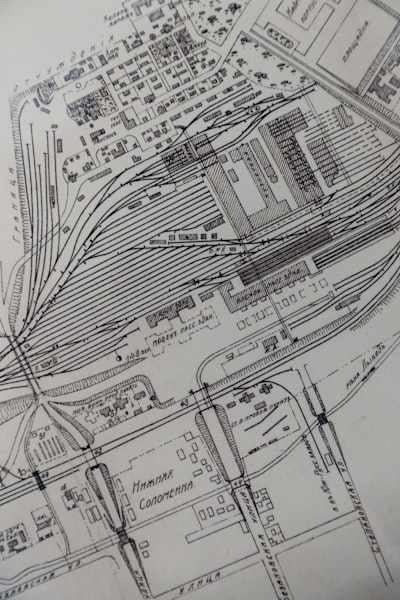
Scanning architectural drawings involves converting physical paper documents into a digital format. This process is especially beneficial for oversized documents that can be challenging to store and access. Large format scanning is the preferred method for scanning architectural drawings due to their size and level of detail.
By using specialized scanning equipment, these oversized documents can be accurately captured and converted into digital files, including those in the common ARCH (architectural drawing sizes) and ANSI (American National Standards Institute) categories. Understanding the basics of architectural drawing scanning, including the use of ARCH and ANSI sizes, as well as the availability of scan centers, is crucial for efficient and accurate digitization of these important documents.
What Are Architectural Drawings and Why Digitize Them?
Architectural drawings are detailed technical illustrations used for designing, constructing, and documenting buildings and structures. These include:
- Blueprints – Technical drawings that detail a building’s design.
- Site Plans – Overviews of a construction site, including landscaping and utilities.
- Floor Plans – Scaled diagrams of a building’s interior layout.
- Mechanical, Electrical & Plumbing (MEP) Drawings – Engineering drawings for HVAC, electrical, and plumbing systems.
- Elevations & Sections – Vertical and cross-sectional views of a structure.
Why Should You Digitize Architectural Drawings?
Traditionally, architectural drawings were stored as physical blueprints or paper documents. However, digitizing these drawings offers several advantages:
✅ Improved Accessibility – Digital files can be stored on cloud platforms like Google Drive or Dropbox, making them accessible from anywhere.
✅ Enhanced Collaboration – Team members can review, edit, and share digital drawings more efficiently than paper documents.
✅ Space & Cost Savings – Eliminate bulky physical storage and reduce the costs associated with document retrieval services.
✅ Damage Prevention – Digital files are immune to physical degradation, such as fading, tearing, or water damage.
✅ Integration with CAD Software – Scanned drawings can be converted into DWG or DXF formats for use in AutoCAD, Revit, or SketchUp.
By digitizing architectural drawings, firms streamline operations while ensuring their valuable documents remain secure and accessible.
Types of Architectural Drawings Suitable for Scanning
Not all architectural drawings require scanning, but certain types greatly benefit from digitization:
1. Blueprints
Blueprints are detailed construction drawings that outline structural, mechanical, and electrical elements. Scanning blueprints preserves their accuracy and readability for future reference.
2. Floor Plans & Building Plans
Floor plans illustrate the layout of interior spaces, including walls, rooms, and fixtures. Scanning these documents makes it easier to modify and distribute them for renovations or extensions.
3. Site Plans
These large-scale drawings showcase building placement, roads, and landscaping features. Scanning site plans ensures long-term accessibility for project stakeholders.
4. Schematics & Engineering Drawings
Electrical and mechanical schematics contain intricate circuit diagrams and specifications. Digitization allows engineers to edit and analyze these plans more effectively.
5. Elevations & Cross-Sections
Elevation drawings depict a building’s exterior appearance, while cross-sections show interior construction details. Scanning these allows for better documentation and presentation.
The Process of Scanning Architectural Drawings
Scanning architectural drawings follows a structured process to ensure high-quality digital conversion. Here’s a breakdown of the key steps:
Step 1: Preparing the Drawings
Before scanning, architectural drawings should be:
- Flattened – Remove creases, folds, or curled edges.
- Cleaned – Ensure there are no stains, dust, or sticky notes obstructing details.
- Sorted – Organize documents logically (by project, date, or category).
Step 2: Scanning the Drawings
- Use a large-format scanner designed for blueprints and technical drawings.
- Select the right resolution – 300 to 600 DPI (dots per inch) for clear details.
- Scan in grayscale or color, depending on document requirements.
Step 3: Quality Checking the Scanned Images
- Review scans for clarity, completeness, and alignment.
- Look for missing lines, smudges, or distortion.
- Rescan if necessary to correct any imperfections.
Step 4: Converting & Delivering the Digital Files
- Choose file formats:
- PDF – Ideal for easy sharing and printing.
- TIFF – High-quality format for archiving.
- JPEG/PNG – Useful for presentations or quick previews.
- Optimize files for storage and access, using compression when needed.
- Deliver files via cloud storage (Google Drive, Dropbox) or external drives.
This process ensures that architectural drawings are accurately preserved and easily accessible across different locations, including North America, the UK, Dubai, and India.
Preparing Your Drawings for Scanning
Proper preparation helps produce clean, high-quality scans. Follow these steps:
1. Flatten and Smooth Out Documents
- Remove any folds or wrinkles that could distort the scan.
- Place drawings under a flat weight overnight to straighten curled edges.
2. Remove Unnecessary Elements
- Detach staples, paper clips, or sticky notes that could interfere with scanning.
- Consider removing duplicate or outdated versions to reduce digital clutter.
3. Sort and Label Documents
- Arrange drawings by project name, date, or type (floor plans, elevations, etc.).
- Label files for easy retrieval post-scanning.
4. Consider Small Document Scanning
In addition to blueprints, scan business cards, billing records, and facility documents for a complete digital archive.
By taking these steps, you ensure that the final digital files are easy to manage, access, and share.
Choosing the Right Equipment and Settings
1. Selecting the Best Large-Format Scanner
Selecting the right scanner is crucial to capturing the details of architectural drawings accurately. Here are the key factors to consider:
Types of Scanners
- Flatbed Scanners: Ideal for high-resolution scans but limited in size. Best for small to medium-sized drawings.
- Large-Format Scanners: Designed for blueprints and technical drawings, these scanners accommodate oversized documents with high precision.
- Sheet-Fed Scanners: Good for continuous scanning but may struggle with delicate or curled drawings.
Key Features to Look For
- Resolution (DPI): Aim for at least 600 DPI to capture fine details.
- Scanning Speed: Faster scanning speeds help when handling bulk documents.
- Color Accuracy: Essential for scans containing color-coded annotations.
Best Scanners for Architectural Drawings (2025)
- Epson Expression 12000XL (Flatbed) – High-resolution, great for detailed images.
- Contex IQ Quattro 4450 (Large-Format) – Fast and accurate for professional use.
- Canon imagePROGRAF MFP Series – Ideal for scanning and printing large-format drawings.
2. Setting the Right DPI (Resolution)
- 300 DPI – Standard quality, suitable for most drawings.
- 600 DPI – Higher clarity for fine-line details.
- 1200 DPI – Used for preserving extremely detailed or aged documents.
💡 Pro Tip: Higher DPI means sharper images but also larger file sizes. Find a balance between quality and storage capacity.
3. Choosing the Right File Format
📂 PDF – Best for sharing and viewing.
📂 TIFF – Ideal for archival storage (lossless format).
📂 JPEG/PNG – Used for quick previews or web display.
4. Adjusting Scanner Settings for Best Results
- Grayscale for simple line drawings.
- Color mode for renderings and sketches.
- Contrast adjustment to enhance faint lines.
💡 Bonus: Some large-format scanners allow you to scan small items like business cards, making them versatile tools for various documentation needs.
Common Challenges and How to Overcome Them
1. White Lines or Streaks in Scanned Images
Cause: Dust or debris on the scanner glass.
Solution:
✅ Clean the scanner glass regularly with a lint-free cloth.
✅ Inspect originals for damage before scanning.
2. Distorted or Crooked Scans
Cause: Drawings were not aligned correctly during scanning.
Solution:
✅ Place drawings flat and straight before scanning.
✅ Use the scanner’s auto-align feature if available.
3. Large Document Size Issues
Cause: Some scanners can’t accommodate extra-large blueprints.
Solution:
✅ Use large-format scanners designed for documents up to 44 inches wide.
✅ If necessary, scan in sections and stitch images together using software like Adobe Photoshop.
4. File Size Too Large for Easy Sharing
Cause: High-resolution scans take up more space.
Solution:
✅ Use file compression tools like Adobe Acrobat or TinyPNG.
✅ Convert files to lower-resolution PDFs for quick previews.
5. Text Not Searchable in Scanned Documents
Cause: Scanned images are not converted to editable text.
Solution:
✅ Use OCR (Optical Character Recognition) software to extract text.
✅ Save files in searchable PDF format for easy keyword lookup.
If you face ongoing issues, consult your scanner’s troubleshooting guide or seek help from a professional scanning service.
Best Practices for Scanning Architectural Drawings
To achieve optimal results when scanning architectural drawings, it is important to follow best practices. Firstly, consider the resolution of the scans. Higher resolutions result in sharper and more detailed images but may also lead to larger file sizes. Choose a resolution that balances image quality with storage requirements. Secondly, select appropriate file formats for the scanned drawings, such as PDF or TIFF. These formats are widely supported and can be easily accessed and shared. Finally, consider adding metadata to the scanned files, such as project names, dates, and descriptions. This metadata helps with organization and retrieval of the drawings in the future.
Choosing the Right Resolution
The resolution (measured in dots per inch – DPI) directly impacts the clarity and accuracy of scanned architectural drawings. Here’s how to select the right DPI:
- 300 DPI – Standard resolution, ideal for most architectural drawings.
- 600 DPI – High detail for blueprints with fine lines or faded documents.
- 1200 DPI – Used for archival purposes or high-precision details.
💡 Tip: Higher DPI means larger file sizes, so balance between clarity and storage needs.
Best File Formats for Scanned Drawings
📂 PDF – Best for easy sharing, annotation, and printing.
📂 TIFF – High-quality, lossless format ideal for archiving.
📂 DWG/DXF – If converting to CAD software for further modifications.
📂 JPEG/PNG – Suitable for presentations or quick reference.
💡 Pro Tip: If you plan to edit the drawings in CAD software, use vectorized file formats like DWG/DXF.
Organizing and Storing Digital Files
1. Implement a Consistent Naming System
To ensure easy retrieval, adopt a standardized file naming format such as:
✅ [Project Name][Drawing Type][Date]_[Version].pdf
Example: DowntownTower_FloorPlan_2025-04-04_v2.pdf
2. Use Cloud Storage for Accessibility
Cloud storage ensures secure, scalable, and remote access to your scanned drawings.
🔹 Google Drive & Dropbox – Ideal for easy sharing and collaboration.
🔹 OneDrive – Integrated with Microsoft 365 for seamless document management.
🔹 Amazon S3 & Azure – Best for long-term secure storage with advanced access controls.
💡 Tip: Set folder structures by project, date, or client to keep files organized.
3. Add Metadata for Better Searchability
Enhance document retrieval by embedding metadata such as:
✅ Project Name
✅ Date Created
✅ Drawing Type (Floor Plan, Elevation, Section, etc.)
✅ Approval Status (Draft, Final, Archived, etc.)
Enhancing Scanned Drawings with Image Editing Software
Once scanned, you may need to clean up the images:
- Use Photoshop or GIMP to remove background noise and enhance line clarity.
- Adjust contrast and brightness to make faint lines more visible.
- Remove smudges and stains using the eraser tool or AI-enhanced editing tools.
- Convert raster scans to vector using software like Adobe Illustrator or CorelDRAW.
Converting Scanned Drawings into CAD Files
If you need to edit your scanned blueprints in AutoCAD or Revit, you must convert them to vector formats:
Conversion Methods
- Manual Tracing: Use software like AutoCAD to trace over scanned images.
- Automated Vectorization: Programs like Scan2CAD and Adobe Illustrator can convert raster images to vector.
- Hybrid Approach: Start with automatic vectorization, then refine manually in CAD software.
Best Software for CAD Conversion
- AutoCAD Raster Design – Converts scans into DWG/DXF files.
- Scan2CAD – Fast and accurate raster-to-vector conversion.
- CorelDRAW – Offers precision vector tracing for scanned images.
Advanced Techniques and Technologies
In addition to traditional scanning methods, there are advanced techniques and technologies that can further enhance the scanning process for architectural drawings.
1. 3D Scanning for Architectural Models
3D scanning captures the depth, dimensions, and textures of physical models, converting them into interactive digital replicas.
Benefits of 3D Scanning:
✔️ High-detail 3D renderings for VR/AR applications.
✔️ Accurate measurement extraction for restoration projects.
✔️ Seamless integration with BIM (Building Information Modeling) software.
2. Leveraging AI for Image Enhancement
AI-powered tools can:
- Auto-clean and sharpen scanned images.
- Remove distortions and improve readability.
- Convert scanned drawings into CAD-compatible vector files.
🔹 Recommended Tools:
- Adobe Scan (AI-powered document enhancement).
- Scan2CAD (Converts scanned blueprints to DWG/DXF formats).
3. Utilizing Cloud Storage for Archival
Storing scanned architectural drawings on cloud-based platforms offers:
✅ Remote access from any device.
✅ Version control & automatic backups.
✅ Enhanced security with encryption.
💡 Tip: Consider hybrid storage (local + cloud) for maximum redundancy and security.
Legal and Security Considerations
While digitizing architectural drawings offers numerous benefits, it is essential to consider legal and security considerations.
1. Protecting Copyrights and Intellectual Property
Before digitizing architectural drawings, ensure you have the right permissions to scan and share them.
Key Legal Considerations:
✅ Verify who owns the drawing copyrights (architect, firm, or client).
✅ Obtain written permission if needed.
✅ Avoid unauthorized distribution to protect intellectual property rights.
2. Ensuring Data Privacy and Security
When dealing with sensitive architectural drawings, implement robust data security protocols:
🔒 Secure File Storage:
- Encrypt digital files using AES-256 encryption.
- Use password-protected PDFs to restrict access.
🔒 Secure File Transfers:
- Share files via secure FTP or encrypted cloud links.
- Implement multi-factor authentication (MFA) for cloud access.
🔒 Compliance with Industry Regulations:
Follow GDPR, HIPAA, or NDAs for handling confidential architectural data.
💡 Tip: Set document expiration dates for shared links to maintain control over file access.
Conclusion
Digitizing architectural drawings ensures better preservation, accessibility, and workflow efficiency. By selecting the right scanner, using optimal scanning techniques, and organizing digital files effectively, you can create high-quality digital versions of your blueprints and floor plans.
Ready to upgrade your scanning process? Check out our recommended scanners and software to streamline your workflow today!
Frequently Asked Questions
Can I scan architectural drawings at home?
Yes, it is possible to scan architectural drawings at home, especially if you have a large format scanner that can handle oversized documents. However, achieving high-quality scans may require specialized equipment and expertise. Consider the resolution and file formats to ensure optimal results. If you are unsure about the scanning process, it is recommended to consult a professional scanning service for assistance.
How much does it cost to professionally scan architectural drawings?
The cost of professionally scanning architectural drawings depends on various factors, such as the size of the drawings, the volume of documents, and the specific requirements of the project. It is best to consult with a scanning service to get a quote based on your specific needs. Professional scanning services have the expertise and equipment to ensure high-quality scans and can provide you with an accurate cost estimate.
What is the best format to save scanned architectural drawings?
PDF is widely considered the best format to save scanned architectural drawings. PDF files are widely supported, can be easily accessed and shared, and provide a high level of quality and security. Additionally, PDF files can be compressed to reduce storage requirements without compromising the integrity of the drawings.
How do I choose a scanning service for architectural drawings?
When choosing a scanning service for architectural drawings, consider factors such as their expertise in document conversion, the quality of their scanning equipment, and any certifications they hold. Look for reviews or recommendations from trusted sources to ensure their reputation and reliability. Request samples or references to assess the quality of their work.