

Essential Highlights of Duplex Document Scanning Techniques
- Learn how to scan double sided documents effortlessly.
- This guide provides step-by-step instructions for various scanners and software.
- Discover tips for optimal scan settings and troubleshooting common issues.
- Enhance efficiency and streamline your document workflow.
- Achieve high-quality scans for improved readability and ease of use.
Introduction
Scanning double-sided documents can be a time-consuming task if you don’t know the right techniques and tools to use. Whether you’re digitizing a stack of old papers or organizing your office, scanning both sides of a document in one go can save you a lot of time. Did you know that many modern scanners come with duplex scanning features? This means you can scan both sides automatically! In this article, we’ll show you how to scan double sided documents efficiently, ensuring high-quality results with minimal effort.
Understanding Double-Sided Scanning
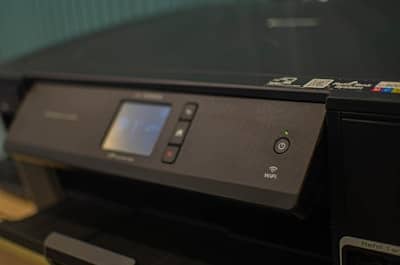
Double-Sided Scanning or Duplex scanning is a time-saving feature that allows you to scan both sides of a document in a single pass. If you’re looking to digitize multiple pages quickly and efficiently, duplex scanning is a game-changer. It’s especially useful when combined with an Automatic Document Feeder (ADF), which feeds documents one by one into the scanner.
Note: Looking for affordable options? We’ve also outlined the best deals on large format scanning prices to help you get the most value without sacrificing quality.
What Is Duplex Scanning?
At its core, duplex scanning is the ability to scan both the front and back of a document automatically. Many modern scanners, particularly those with an Automatic Document Feeder (ADF), come equipped with duplex scanning capabilities. This feature uses an internal mechanism to flip the document or scan both sides at once, eliminating the need for you to manually flip pages.
How Does Duplex Scanning Work?
- Automatic Document Feeder (ADF):
The ADF is a key component of duplex scanning. It allows you to load multiple pages into the scanner, which automatically feeds one page at a time for scanning. For duplex scanning, the ADF flips or scans both sides of each page without requiring any manual intervention. - Scanning Process:
Once you load your documents into the ADF, you can initiate the duplex scan job through the scanner’s software. The scanner will then take care of scanning both the front and back sides of each page. This automatic process ensures that your digital files are complete and organized. - Quality and Speed:
With duplex scanning, both sides of your documents are captured at once, ensuring high-quality digital files. This speeds up the scanning process, which is especially helpful when handling large volumes of documents.
Why Duplex Scanning is Important:
- Saves Time: Duplex scanning eliminates the need for you to flip pages manually, reducing the time it takes to scan multi-page documents.
- Improves Efficiency: This feature is ideal for offices or individuals who need to scan large amounts of paperwork quickly. It enhances your overall workflow, making it much more efficient than single-sided scanning.
- Reduces Paper Handling: By automating the process, duplex scanning minimizes the chances of documents being misplaced or incorrectly aligned.
- Ensures Complete Files: Since both sides of each document are scanned simultaneously, there’s less risk of missing important information or having incomplete digital copies.
Overall, duplex scanning is an essential tool for anyone looking to streamline their document management process and go paperless.
How Duplex Scanning Can Benefit You
- Streamlines Document Management: Scanning both sides of a document in one pass means you can quickly digitize entire stacks of paperwork. This is perfect for businesses or individuals who want to go paperless.
- Reduces Human Error: Without the need for manual flipping of pages, duplex scanning ensures that all pages are captured accurately, leaving no room for mistakes.
- Perfect for High-Volume Scanning: Whether you’re scanning invoices, contracts, or client files, duplex scanning is ideal for handling large volumes of documents. It saves you from the tedious task of scanning each side separately.
In the end, using the duplex scanning feature helps you be more productive and helps the planet at the same time.
How to Scan Double Sided Documents with a Flatbed Scanner
Although modern scanners often come equipped with automatic document feeders (ADF), you may still find yourself using a flatbed scanner for some projects. Here’s a quick guide to scanning double-sided documents manually with a flatbed scanner.
Steps for Scanning Double-Sided Documents on a Flatbed Scanner:
- Place the Document on the Scanner Bed: Position the document face-down on the flatbed scanner. Make sure the edges align with the scanner guides.
- Scan the Front Side First: Start by scanning the first side of the document. You can usually select the “Scan” button on your scanner software.
- Flip the Document Over: Once the first side is scanned, flip the document over carefully.
- Scan the Back Side: Place the document face-down again and scan the second side.
- Combine the Scanned Pages Digitally: If you’re scanning a multi-page document, you can merge the two scanned sides into one PDF file using document editing software like Adobe Acrobat or your scanner’s software.
For those needing specialized equipment and expert services, consider exploring expert large flatbed scanning services near me to handle delicate and oversized documents with precision.
Tips for Scanning with a Flatbed Scanner:
- Align the Document Properly: Ensure that the paper is aligned to avoid crooked scans.
- Adjust Scanner Settings: Check the resolution settings to ensure you’re capturing high-quality scans.
- Use Image Editing Software: If necessary, crop or adjust the scanned pages to create clean, professional results.
Scanning Double-Sided Documents Using an Automatic Document Feeder (ADF)
If you frequently scan large batches of documents, an Automatic Document Feeder (ADF) is the best option. The ADF allows you to load a stack of pages and automatically scan both sides of each page without manual intervention.
Steps for Using an ADF to Scan Double-Sided Documents:
- Load the Documents into the ADF Tray: Stack your documents neatly in the ADF tray. Make sure they’re aligned properly and not too thick.
- Set Your Scanner to Duplex Mode: Open the scanner software and ensure the duplex option is selected, allowing the machine to scan both sides of each page.
- Start the Scan: Press the “Scan” button, and the ADF will automatically feed each document through the scanner, scanning both sides.
- Save or Edit the Scanned File: After scanning, save the document as a PDF or another format of your choice. You can also use software to rearrange or organize the pages.
Advantages of Using an ADF:
- Speed: Scanning multiple pages at once significantly reduces the time required for batch scanning.
- Automation: No need to flip pages or refeed them manually—ideal for large scanning jobs.
- Efficient for Business Use: Perfect for offices with high-volume scanning needs.
Best Scanners for Double-Sided Document Scanning
When choosing a scanner for double-sided documents, it’s important to pick one with duplex scanning capabilities. Here are some top-rated scanners that excel at scanning both sides of documents.
Top Scanners for Duplex Scanning:

- Brother ADS-2700W: A fast and reliable duplex scanner ideal for both home and business use. Offers wireless connectivity and high-quality scanning.
- Epson WorkForce ES-500WR: Known for its ease of use and excellent scan quality, the ES-500WR is perfect for small offices and home offices.
- Canon imageFORMULA R40: A budget-friendly option for personal or small business use, this scanner offers automatic duplex scanning and a compact design.
Features to Look for in a Scanner:
- Duplex Scanning: Ensure the scanner can scan both sides of a document automatically.
- Speed: Look for a scanner with fast scanning speeds, especially if you’re working with large volumes of documents.
- Resolution: Higher resolution settings will ensure your scanned documents retain sharp detail.
- Connectivity: Choose a scanner that can connect via USB, Wi-Fi, or Ethernet, depending on your needs.
Preparing Your Documents for Double-Sided Scanning: A Step-by-Step Guide
Before you begin scanning your documents, taking the time to properly prepare them is key to ensuring smooth, high-quality scans. By following a few simple steps, you can avoid common issues like paper jams and poor scan quality.
Getting your documents organized will help you scan faster and more efficiently, whether you’re scanning one document or a stack of paperwork. Here are some tips to help you prepare your documents for double-sided scanning.
Tips to Ensure Clean Scans
To ensure your scans are crisp and clear, follow these simple tips before starting your duplex scan:
1. Clean the Scanner Glass and Document Feeder
Dust, fingerprints, or bits of dirt on the scanner glass or document feeder can leave smudges or marks on your scans. Regularly cleaning these parts with a soft, lint-free cloth helps prevent imperfections and ensures smooth operation.
2. Remove Staples and Paper Clips
Before placing your documents in the Automatic Document Feeder (ADF), make sure to remove all staples and paper clips. This not only prevents potential damage to your scanner but also helps the pages feed smoothly without jams.
3. Flatten Curled Pages
Pages that are curled or wrinkled may cause misfeeds, resulting in incomplete scans. Gently flatten any curled pages before you begin scanning to ensure the best possible results.
By following these basic steps, you can avoid common scanning issues and improve the quality of your digital files.
Organizing Documents for Efficient Scanning
How you organize your documents plays a major role in how well your duplex scanning will go, especially when scanning large volumes. Here are some tips to make the process even more efficient:
1. Use the ADF for Multiple Pages
The Automatic Document Feeder (ADF) is designed to handle multiple pages, making it ideal for scanning large batches of documents. Before inserting your documents into the ADF, ensure they’re in the correct order to prevent any errors during the scanning process. If you’re dealing with oversized paperwork, check out our guide on scan large documents: top services and strategies for tips on how to tackle your scanning projects efficiently.
2. Arrange Documents in Similar Batches
Group documents by size and weight for optimal results. Keeping all documents in similar batches minimizes the need to change scanning settings frequently, making the process faster and more streamlined.
3. Consider the Scanning Method
If you’re scanning delicate documents or those of varying sizes, using the scanner’s flatbed glass may be a better option than the ADF. This allows you to handle each document with care and ensures the best possible scan quality.
Proper organization is essential for smooth scanning, especially when working with large projects. Following these tips will improve your scanning workflow and reduce any potential disruptions.
Step-by-Step Guide to Scanning Double-Sided Documents
Now that your documents are prepared, it’s time to start scanning. Whether you’re using Windows or macOS, the steps are relatively simple. Below is a step-by-step guide to help you get the most out of your duplex scanning process.
1. Setting Up Your Scanner for Duplex Scanning
Most modern scanners come with an Automatic Document Feeder (ADF) that supports duplex scanning. Start by checking whether your scanner is equipped for duplex scanning. You can usually find this information in the user manual or on the manufacturer’s website.
Once confirmed, go to your scanner settings through your computer’s control panel (Windows) or system preferences (macOS). Look for the “duplex” or “double-sided” scan option and enable it for your scan job. This will allow the scanner to automatically scan both sides of your documents.
2. Adjusting Scanner Settings for Optimal Results
To get the best quality scans, adjusting your scanner settings is important. Here’s a quick breakdown of key settings you should consider:
- Resolution: Set the resolution based on the type of document you are scanning. For text documents, 300 DPI is typically sufficient. If you’re scanning images or more detailed documents, consider using a higher resolution, such as 600 DPI.
- File Format: Choose a file format that best suits your needs. PDF is a common choice because it maintains formatting and is easily shareable. You can also opt for JPEG or TIFF, depending on your preferences.
- Color Mode: Select the color mode that matches the content of your document:
- Color is best for documents with images or graphics.
- Grayscale works for black and white text with some shading.
- Black and White is ideal for simple text documents.
3. Advanced Settings for High-Quality Scans
- Brightness: Adjust the overall lightness or darkness of the scan to match the document.
- Contrast: Enhances the difference between light and dark areas for clearer scans.
- File Type: Select between formats like PDF, JPEG, or TIFF based on your needs. PDFs are ideal for archiving, while JPEGs are great for image-heavy documents.
These settings will help you get high-quality results from your scanner, ensuring that your double-sided scans come out looking clean and professional.
Additionally, if your project involves architectural drawings or construction plans, our digitize blueprints near me service offers tailored solutions for scanning and digitizing blueprints, ensuring high-quality results for all your professional needs.
Troubleshooting Common Issues
Scanning is usually an easy process. However, sometimes you may face problems like paper jams or poor scan quality. This section will help you learn how to fix these common issues. You will be able to enjoy a smooth scanning experience.
Now, let’s look at some troubleshooting tips for a worry-free experience.
Dealing with Paper Jams and Misfeeds
Paper jams can mess up your work. Here’s how you can deal with them:
- Check Your Scanner Manual: Your scanner manual has clear steps to help you fix paper jams for your specific model. Make sure you follow the right steps.
- Turn It Off and Unplug: Before you try to take out the jammed paper, turn off and unplug your scanner. This will help avoid any electrical issues or damage to the device.
- Gently Take Out Jammed Paper: Carefully pull the stuck paper in the direction it goes. Don’t use too much force or you might tear the paper or break the feeder.
If jams keep happening, try using better quality paper or look inside the feeder for anything that might be blocking it.
Enhancing Scan Quality for Readability
If your scanned document is hard to read, try these steps to improve its quality:
- Adjust the Resolution: Raise the scan resolution. This can make the text clearer, especially in documents with a lot of writing. Try using higher DPI settings for better results.
- Check for Proper Lighting: Make sure your document is well-lit. Avoid any shadows that can affect your scan. Good lighting helps make the scan clearer and more accurate.
- Clean Your Scanner Glass: Clean your scanner glass well. Use a soft, lint-free cloth to remove dust, smudges, or streaks that might lower the quality of the scan.
If you use these tips, you can greatly improve how readable and good your scanned documents are.
Conclusion
Scanning double sided documents doesn’t have to be difficult! By following the right steps and using the appropriate tools, you can save time and effort while ensuring your documents are scanned clearly and efficiently. Whether you’re using a flatbed scanner for a few pages or an automatic document feeder for bulk scanning, these techniques will help you streamline your document management process. Ready to give it a try? Start scanning double-sided documents today and make your office more organized and paperless!
Frequently Asked Questions
How do I enable double-sided scanning on my device?
To start double-sided scanning, find the “duplex” or “double-sided” scan option in your scanner settings. You can usually find this option in your PC’s control panel or system preferences.
Can all scanners scan documents double-sided?
Not every scanner can scan both sides of a page. Look for an Automatic Document Feeder (ADF) and check the scanner’s specs or user manual to see if it supports duplex scanning.
What software can I use for duplex scanning?
Most scan software can do duplex scanning. You can also use tools from your operating system. For example, Windows has Windows Scan. macOS offers Image Capture. You can even try other scan software or apps.
Tips for scanning thick or irregular sized documents?
For thick documents, check how much the ADF can hold. If you have documents of unusual sizes, it might be better to use the scanner glass instead of the ADF. You can find special settings in the scan software. Look in the “settings” or “advanced” tab for options. Check for boxes or choices that mention “thick paper” or “irregular size handling.”